Embedded cart and hosted cart page
Navigate to the App Settings page, scroll down to the "Door Control" section, and click "Create check-in link". A panel will open from the right — select the tickets you want to scan, then click "Create check-in link" at the bottom. The panel will close and your check-in link will appear in the "Door Control" section.
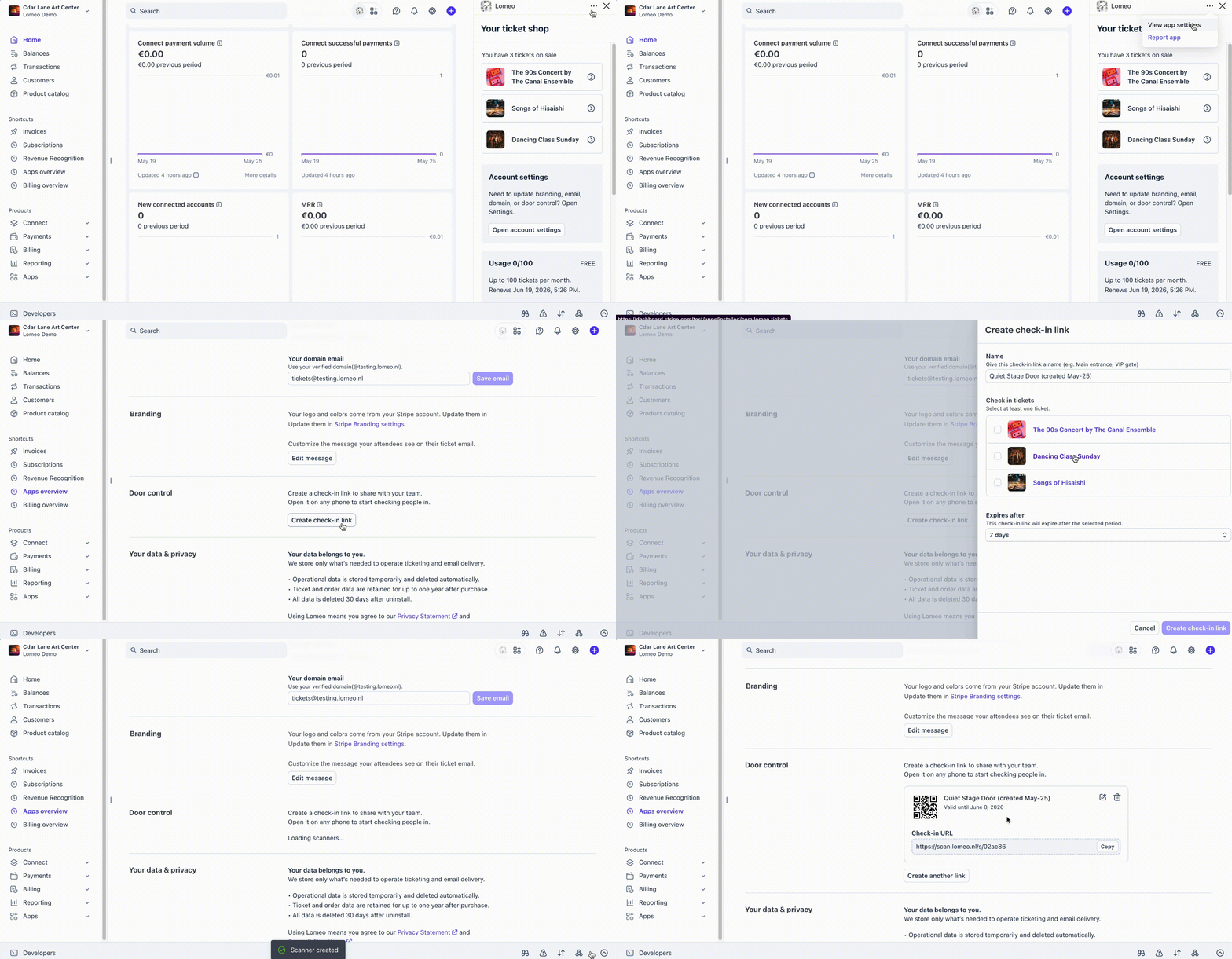
Copy the check-in URL (or scan the QR code) and open it on a smartphone. The link opens a lightweight web app where your team can start scanning immediately. The same link can be used on multiple smartphones at once.
Once you open the link on your smartphone, you should see "Ready to scan". Tap "Turn on camera" to continue. You'll be prompted to allow camera access.
Scan a ticket QR code — a green "Checked in" screen should appear. Each QR code can only be scanned once. Scanning the same code again will show a red error screen, indicating the ticket has already been checked in.
Note: The check-in link should only be shared with your team — anyone with the link can scan tickets for your selected events, so keep it safe.