Check ticket orders
Stripe's Transactions and Invoices pages are always the most complete record of your sales. But if you want to check ticket sales specifically, here are three ways to do it:
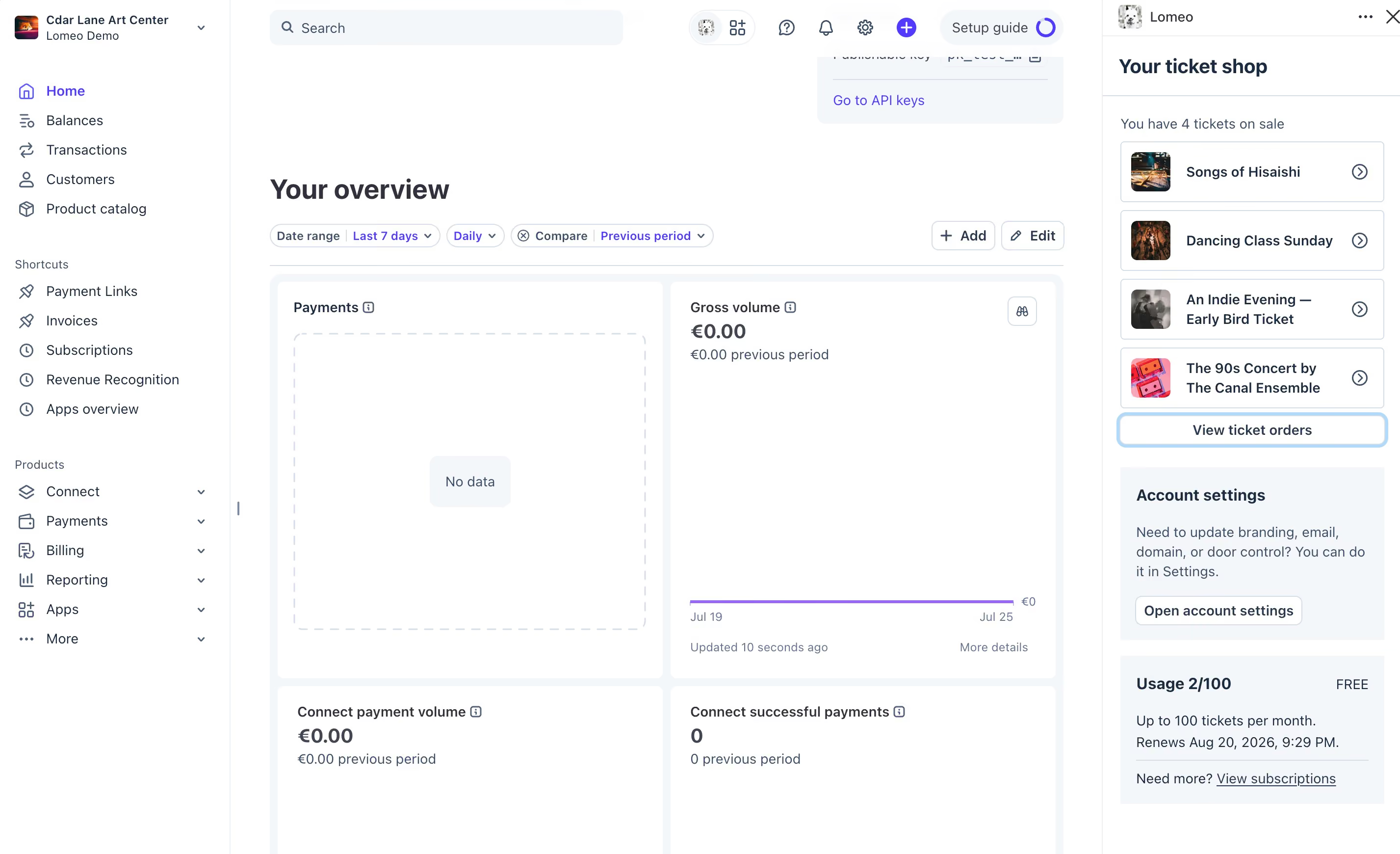
(1) Lomeo App home - "View ticket order"
When you are on the Home page of the Stripe Dashboard, open the Lomeo drawer. Locate the "View ticket orders" button beneath your tickets; a panel will appear displaying all ticket orders.
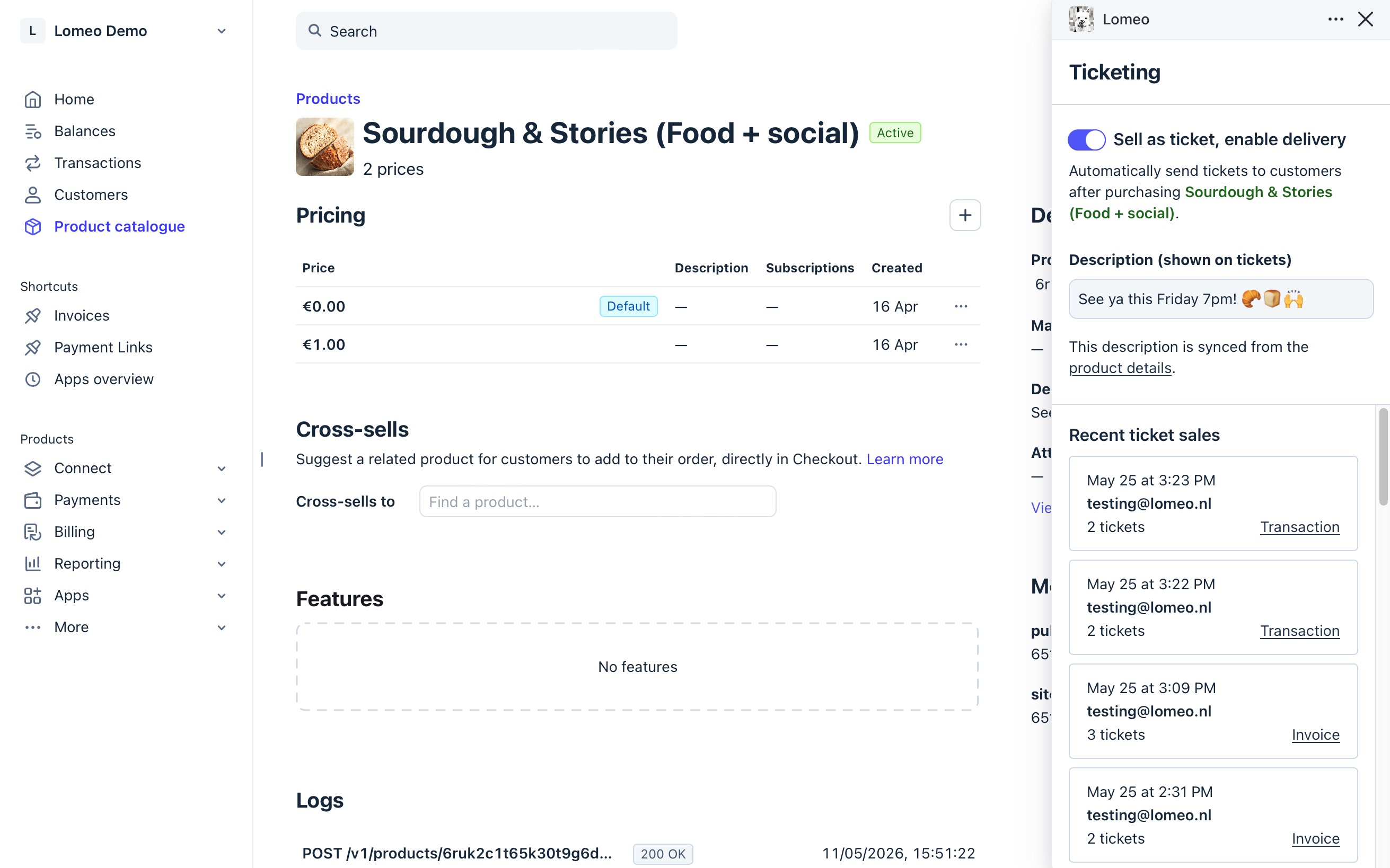
(2) Find recent order on the product detail page
On the product detail page, open the Lomeo drawer. You'll see recent ticket sales listed there. Click on "Transaction" or "Invoice" to view the details.
On the Invoice or Transaction detail page, open the Lomeo drawer to view ticket details, resend tickets, or cancel tickets for that order.
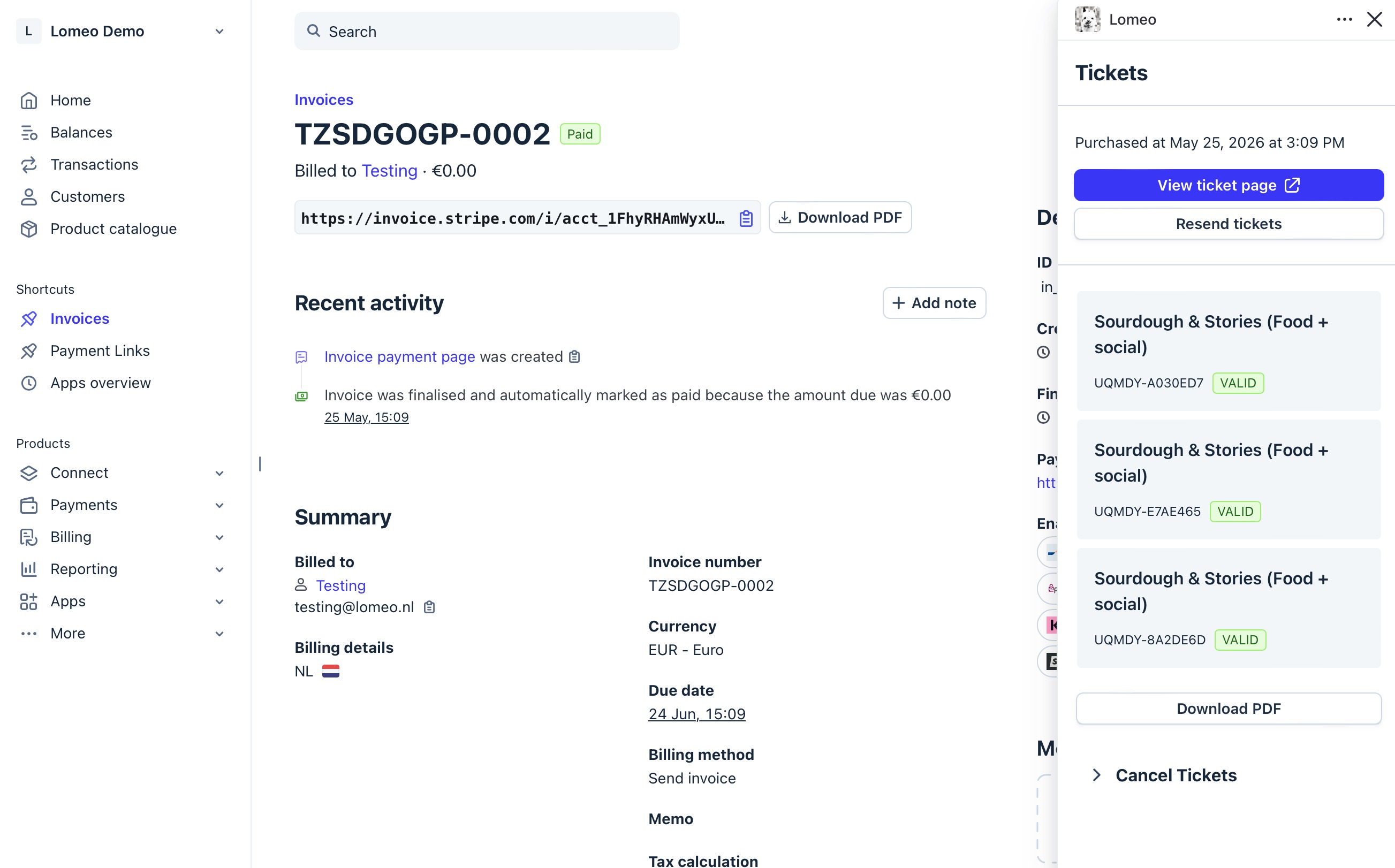
Note: For no-cost transactions (free tickets, or tickets with 100% discount), ticket emails are delivered as usual, but ticket details won't appear in the Lomeo drawer. This is a technical limitation of the Stripe Dashboard.
(3) Export all data
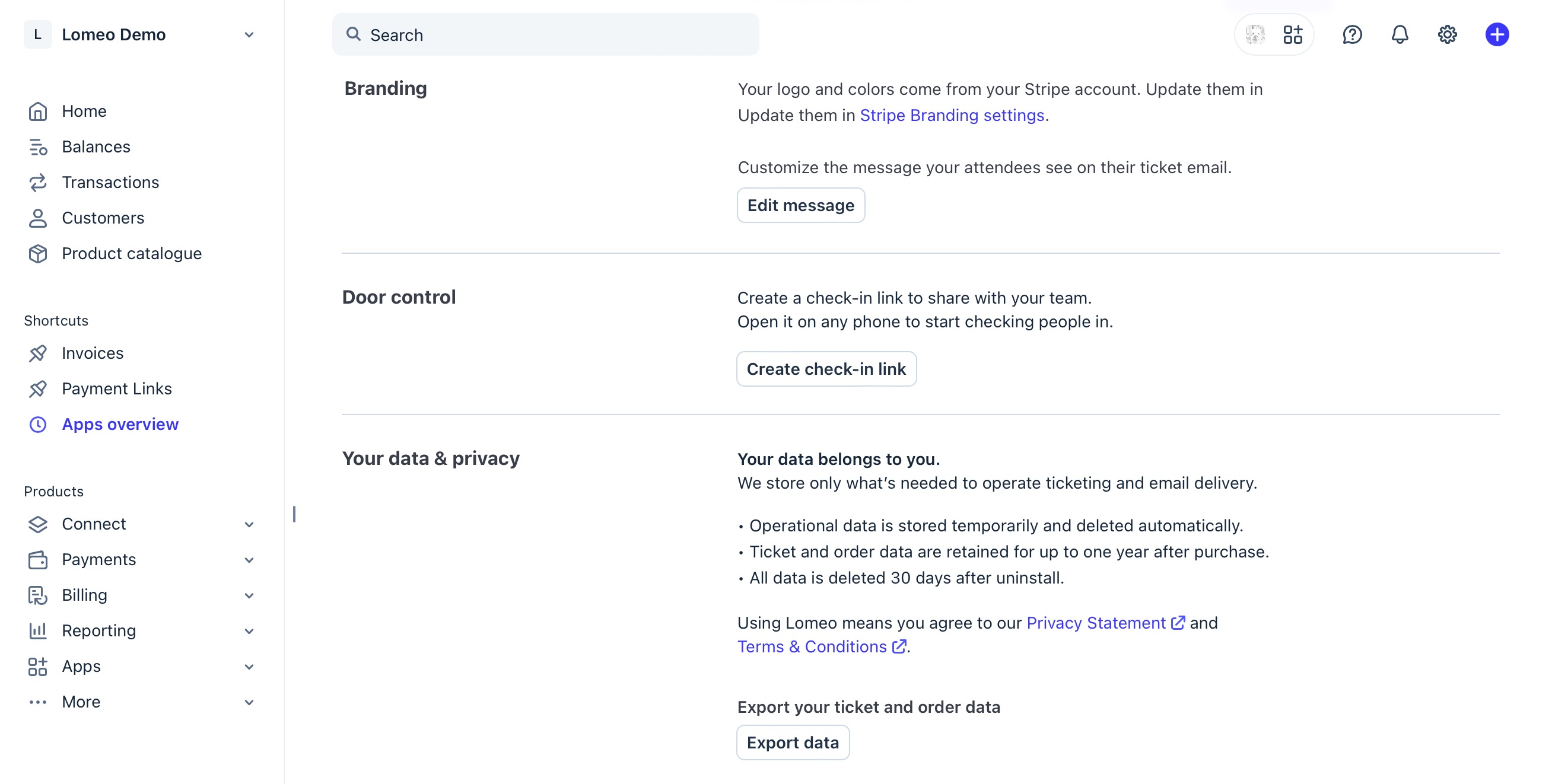
To export all your ticket sales data, go to the Lomeo App Settings page, scroll down to the "Your data & privacy" section, and click "Export data".